
The native Calendar workspace keeps your schedule visible while new data loads, supports compact phone navigation and a multi-pane desktop layout, and sends changes through your Nextcloud CalDAV calendars.
Step 1 Read the month and choose a calendar
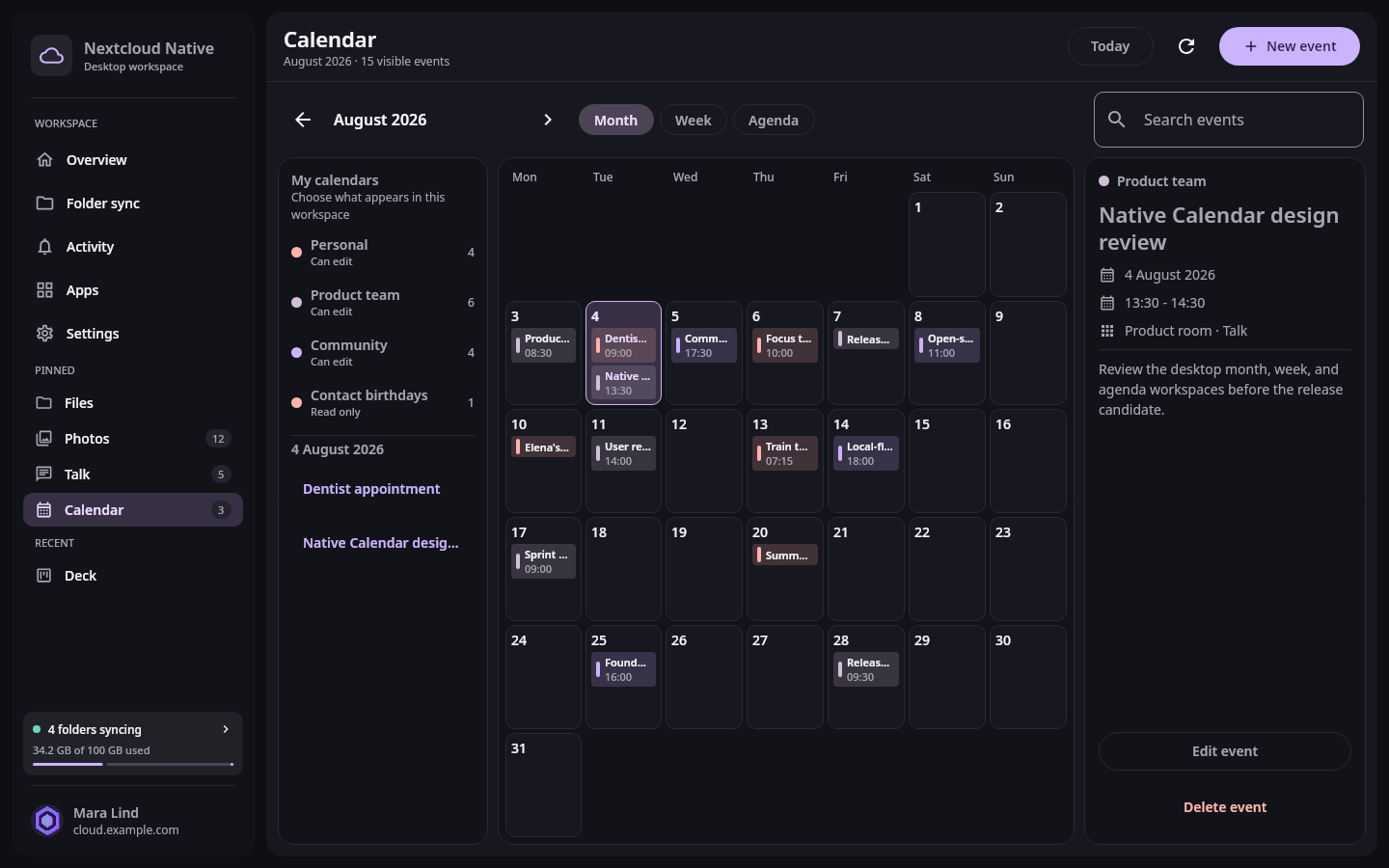
Desktop Calendar uses the available width for sources, the schedule, and a useful inspector instead of stretching a phone view. Real Compose UI Next: Use the compact mobile agendaOpen Calendar from the pinned sidebar or Apps. Use the left source list to show or hide calendars without deleting them. Choose Today to return to the current date, or use the previous and next controls to move by month. Existing content remains visible while the new range refreshes.
Select a day to review its events and choose an event for details. Colors help distinguish sources, but names and labels remain available so status never depends on color alone. Read-only calendars can be viewed but do not expose editing actions.
Step 2 Use the compact mobile agenda
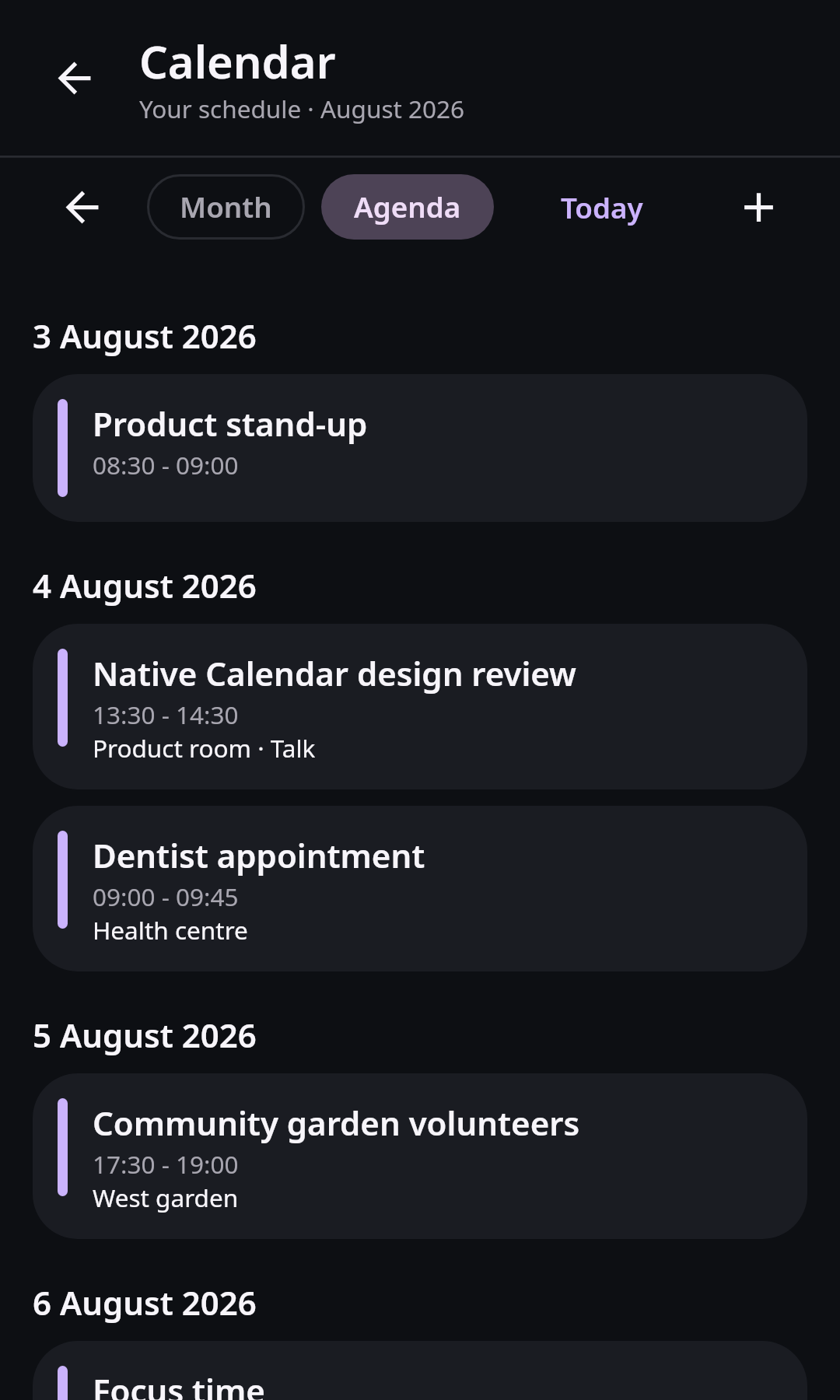
On a phone, Calendar keeps the month compact and gives the agenda enough room for touch-sized event rows and clear time information. Real Compose UI Next: Create and update an event safelyOn a phone, move through the compact month grid and review the agenda below it. Tap an event to open its details. Use system Back to return to the same date and view instead of restarting at the current month. The selected calendar and view survive ordinary activity recreation.
When the connection is slow, the current schedule stays in place with a small progress indicator. Avoid repeating a create or edit action while its result is unknown; wait for the app to confirm the updated event or explain the failure.
Step 3 Create and update an event safely
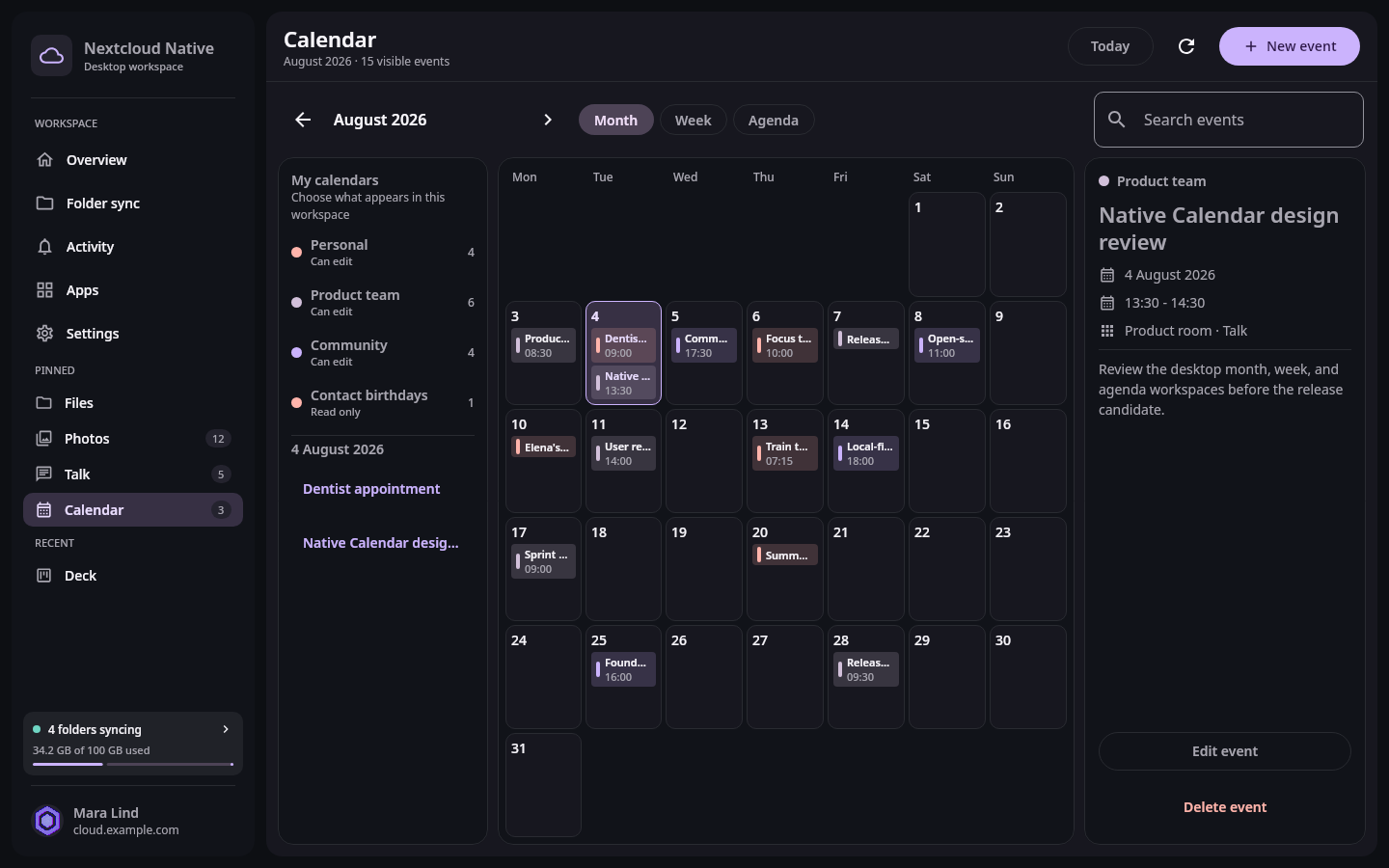
A populated planning view makes calendar choice, recurring work, and event context visible before an edit is submitted. Real Compose UI Choose New event, enter a clear title, and select the correct writable calendar. Add the start and end date or time, location, description, and recurrence when needed. Review the time zone before saving an event for people in another region. All-day events should describe work that is not tied to a particular hour.
Open an existing event to edit or delete it. Updates use the latest server version so a stale window cannot silently replace somebody else's newer change. If Nextcloud reports a conflict, refresh the event, review the current details, and apply your change again deliberately.