
Folder sync keeps a normal folder on your computer connected to a chosen folder in Nextcloud. You can use those files with any desktop application while Nextcloud Native tracks changes, queues transfers, and makes conflicts visible instead of silently choosing one version.
Step 1 Review the Folder sync workspace
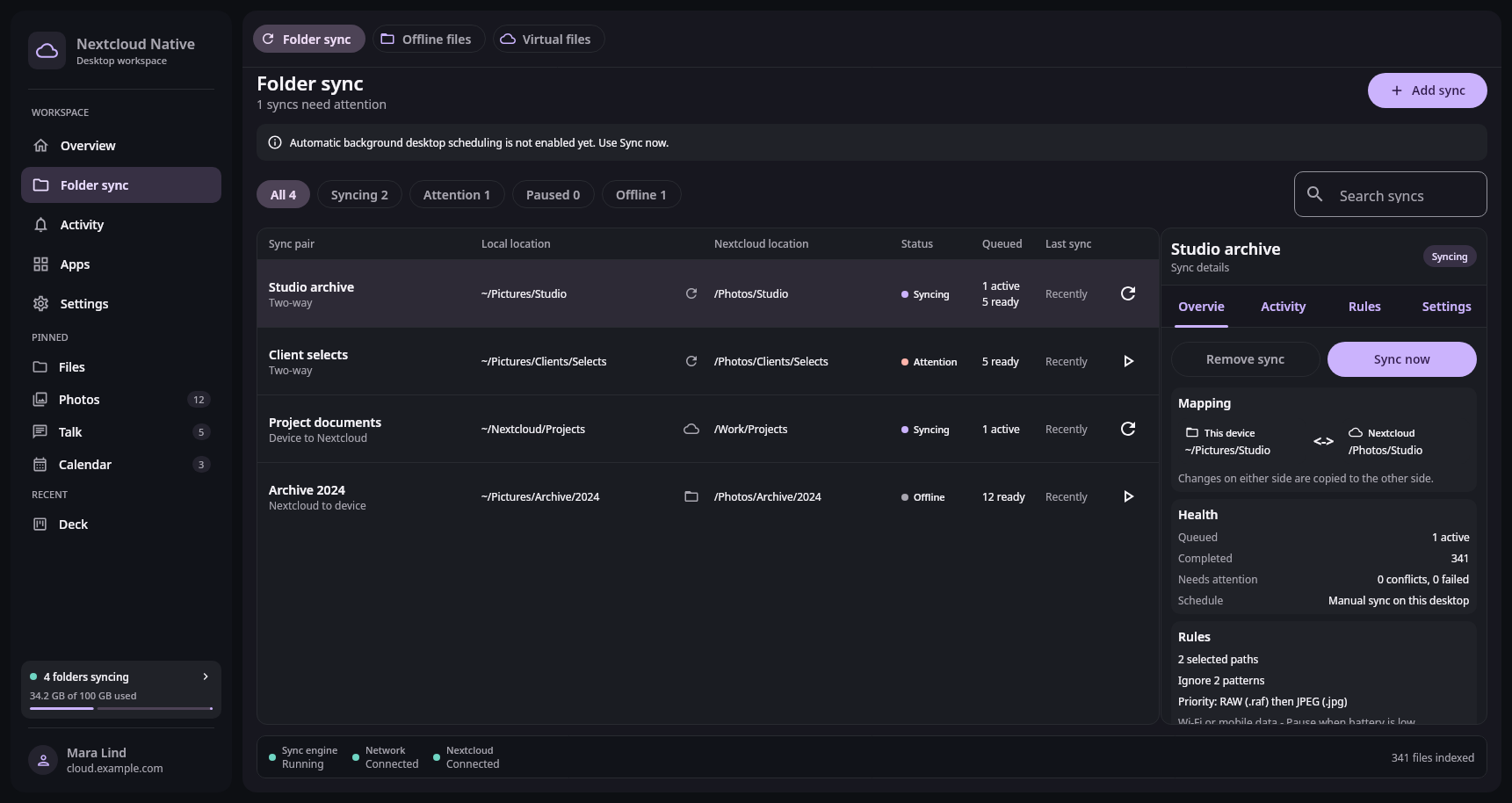
The workspace keeps every pair, its direction, current work, conflicts, rules, and health visible without hiding them in Settings. Real Compose UI Next: Choose the local and Nextcloud foldersOpen Folder sync from the desktop sidebar. Existing pairs appear in one workspace with their local location, Nextcloud location, direction, queued work, and last successful run. Select a pair to review its mapping, rules, health, recent activity, and conflicts in the detail pane.
Before adding another pair, make sure the local folder is not already managed by another sync client. Two tools writing the same files can create duplicate changes or conflicting rename behavior. Pause an existing pair before moving either of its root folders.
Step 2 Choose the local and Nextcloud folders
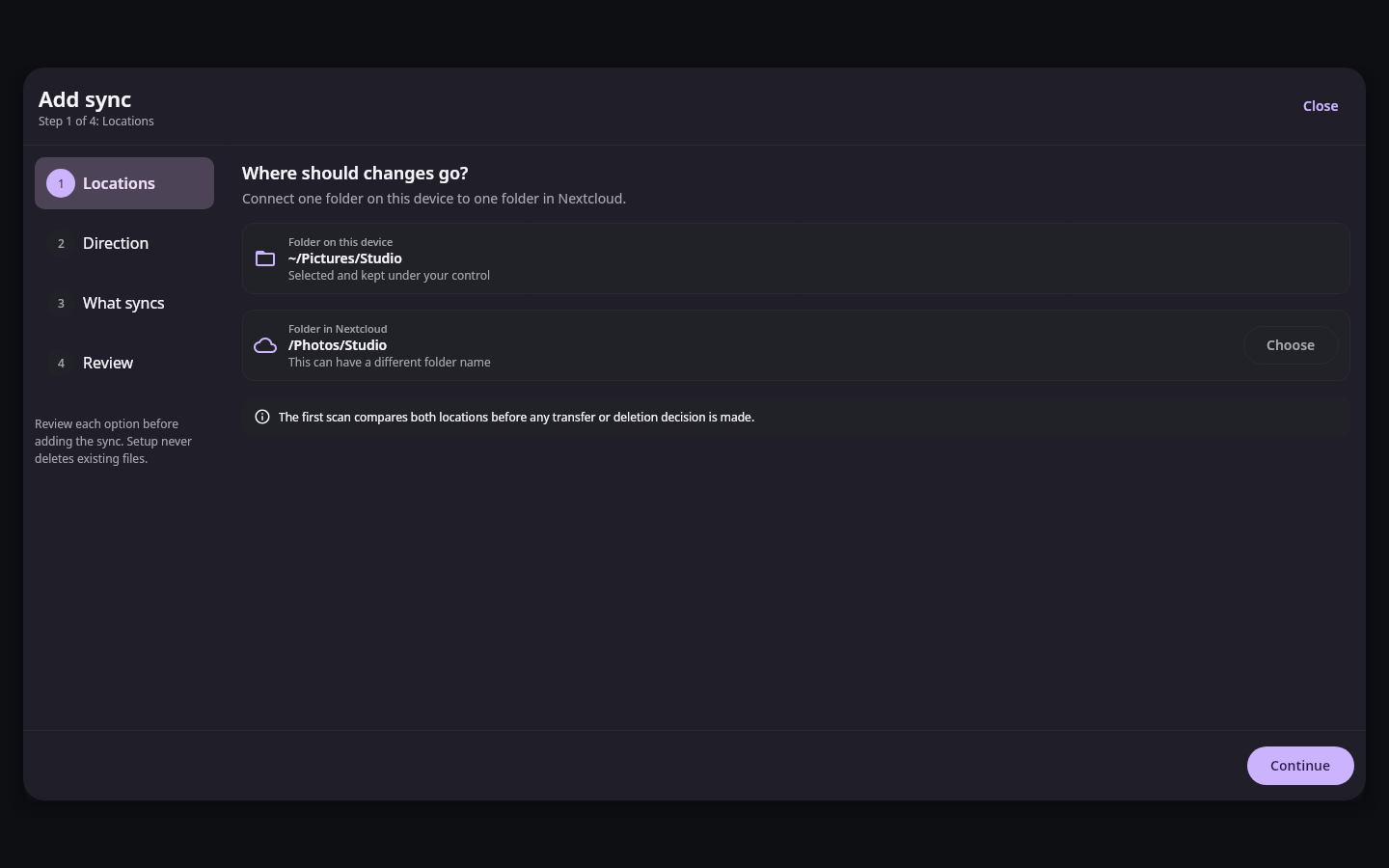
The setup flow keeps local and remote locations visible together and previews the exact scope before any synchronization begins. Real Compose UI Next: Set safe rules and start the pairChoose Add sync, then select a local folder with your operating system's normal folder picker. Choose the destination with the native Nextcloud folder browser. The two paths remain visible together so you can catch a misplaced project or an unexpectedly broad parent folder before creating the pair.
Select Two-way when changes should travel in both directions. Use Device to Nextcloud for upload-oriented backup, or Nextcloud to device for a local read-mostly mirror. Setup does not delete anything while it is incomplete. Review the scope preview and avoid synchronizing operating-system caches or another application's temporary working directory.
Step 3 Set safe rules and start the pair
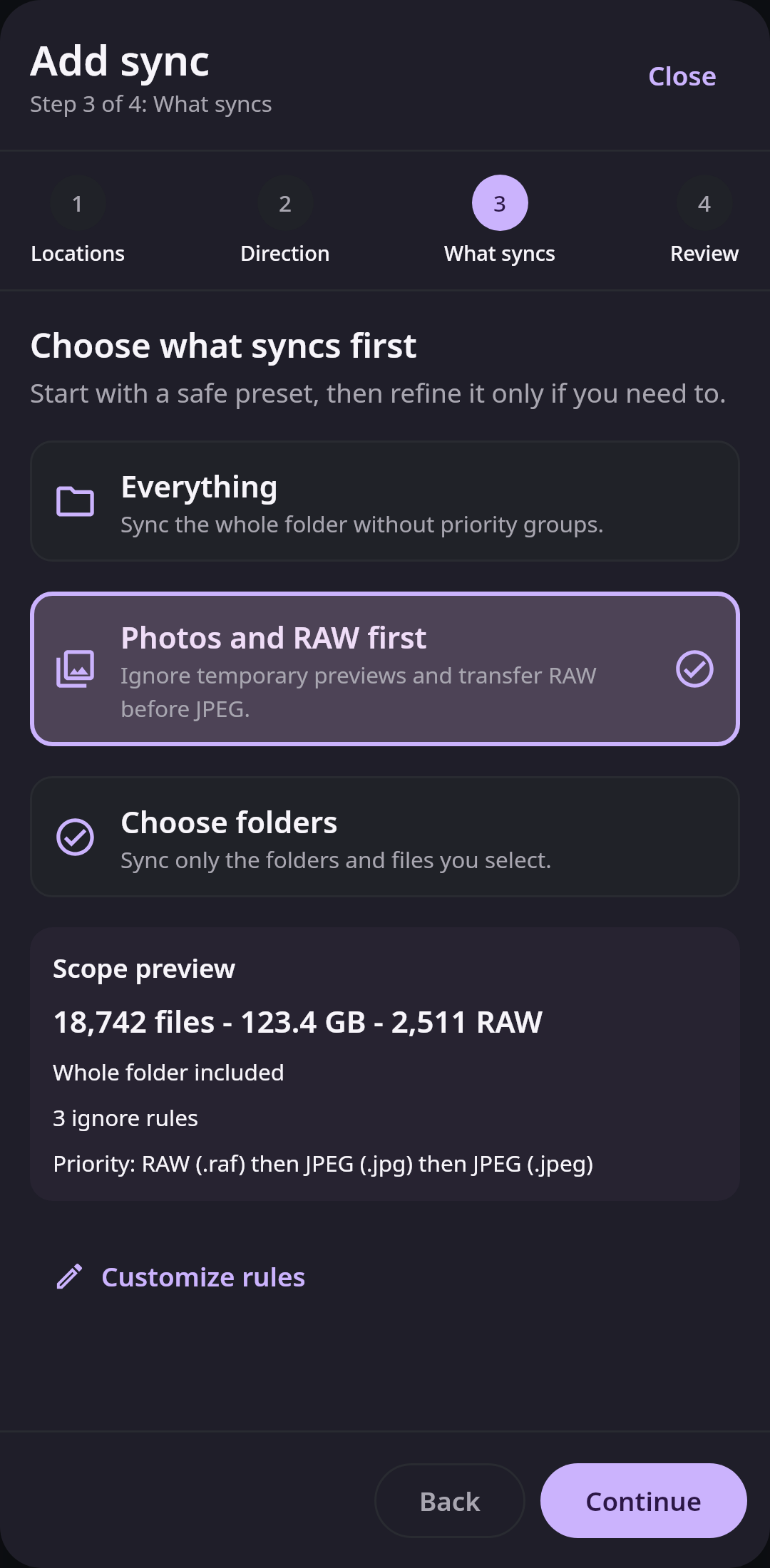
Rules are configured as part of the pair, with an immediate summary of the files and size they will affect. Real Compose UI Choose how simultaneous edits and deletions should be handled. Ask is the safest first choice because it preserves both sides until you decide. Add ignored patterns for generated caches and temporary files, then choose whether large transfers should wait for Wi-Fi or adequate battery power.
Create the pair and watch its first scan from the workspace. Queued does not mean failed: it means work has been found but not completed yet. A green up-to-date state means the current scan has no unresolved work. If a conflict appears, review both versions and use Keep both when you cannot confidently discard either copy.