
Photo backup copies selected camera and media folders to Nextcloud while keeping waiting, uploading, changed, failed, and cloud-only states separate. That distinction lets you see what is safely stored before deciding whether the device copy can be removed.
Step 1 Select camera and media folders
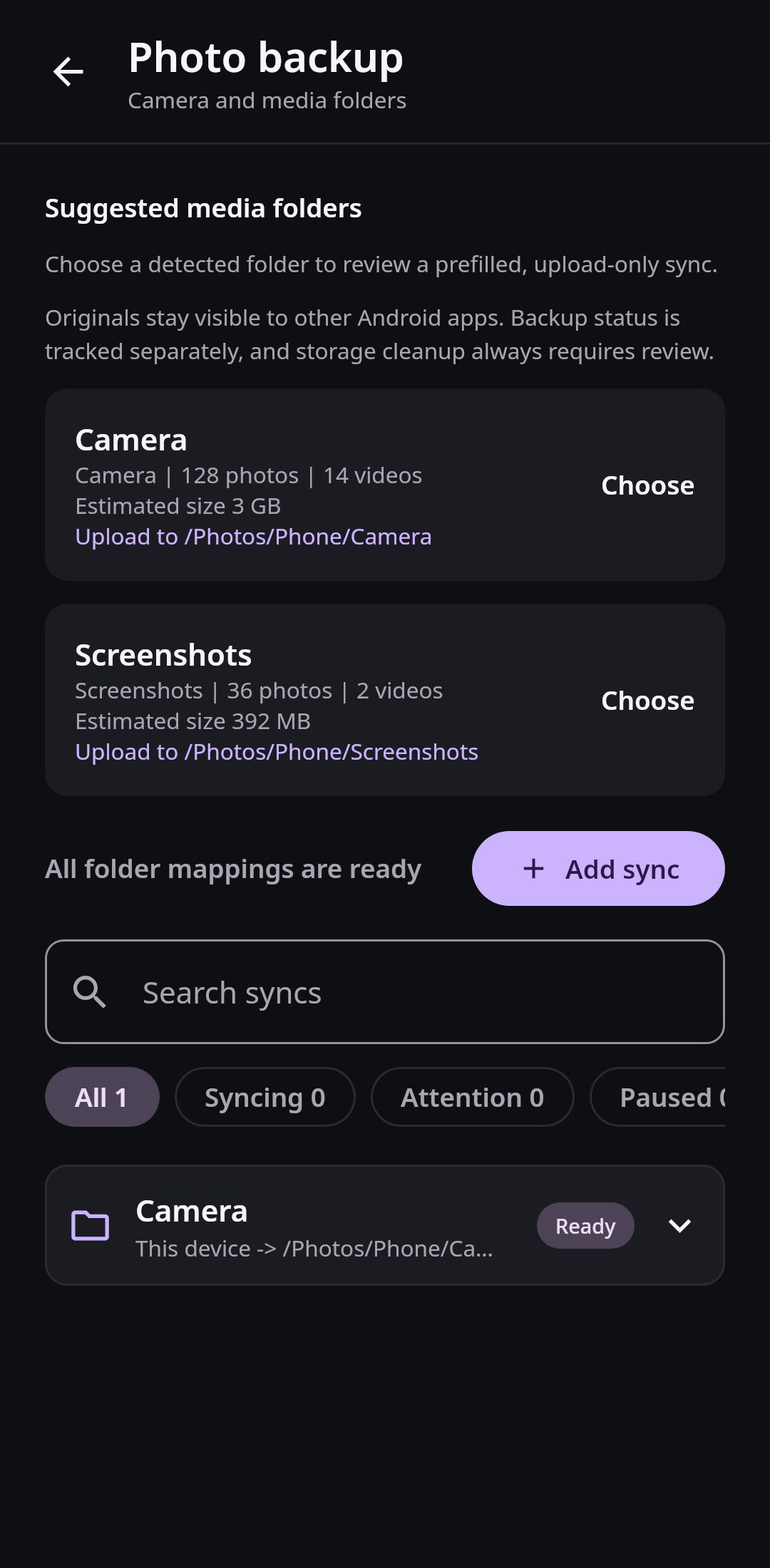
Folder discovery explains what each media source contains and where it will be stored before backup starts. Real Compose UI Next: Follow the backup queueOpen Photos, choose the backup action, and allow access to the media folders you want Nextcloud Native to inspect. Select Camera for photos taken by the device and add Screenshots or other folders only when they belong in your cloud library. Check the proposed Nextcloud destination for each source.
Choose whether uploads may use mobile data and whether they should wait for adequate battery power. These conditions control when work runs; they do not remove queued media. Start with Wi-Fi and battery protection if you are unsure how large the first upload will be.
Step 2 Follow the backup queue
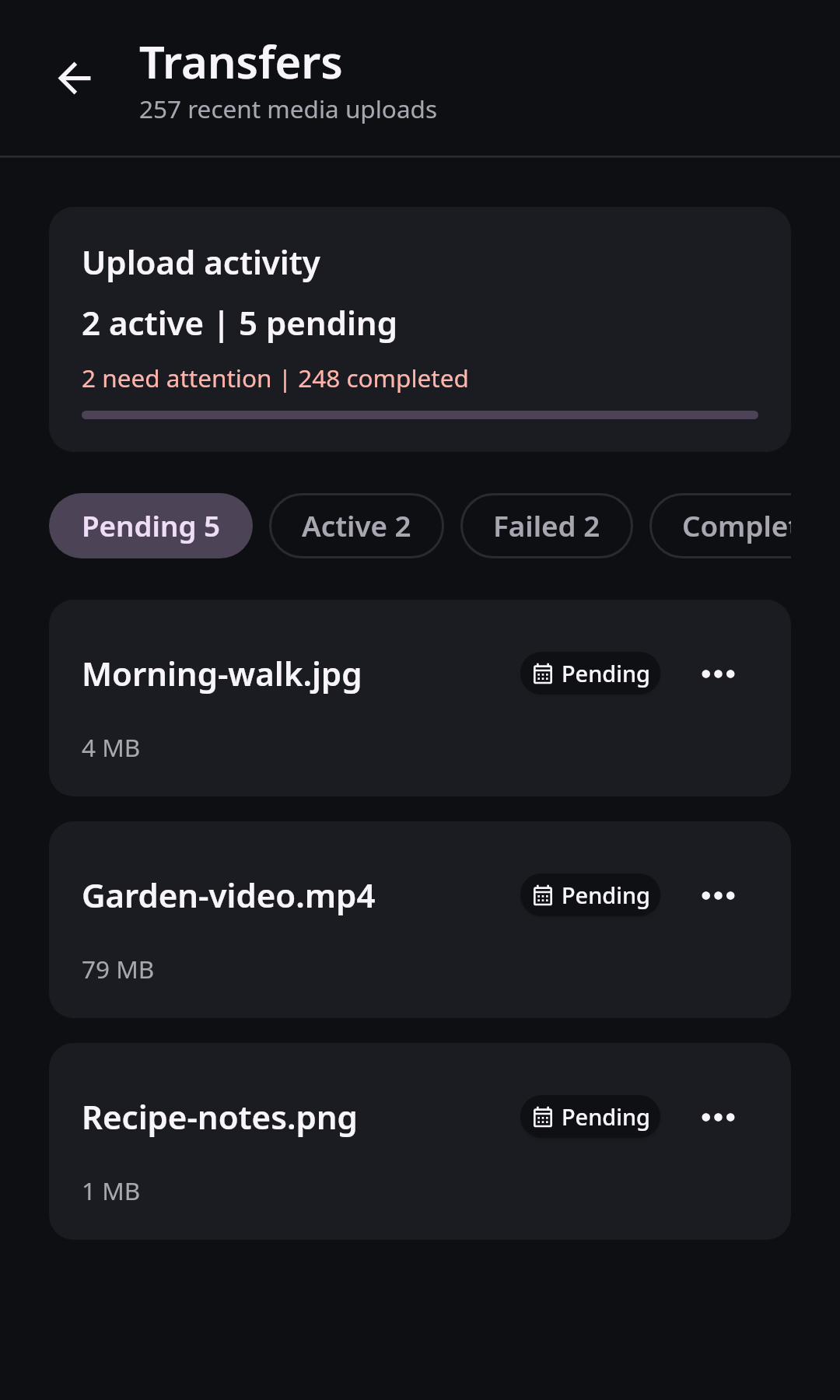
The queue keeps actionable failures and changed source files visible instead of collapsing every item into a generic progress state. Real Compose UI Next: Verify the library before freeing spaceOpen the backup queue to see what is waiting, active, completed, or needs attention. If a source file changes during upload, Nextcloud Native keeps it separate from a verified completion and schedules the correct version again. A failed item remains available for retry after you fix storage, permission, or network problems.
Do not treat an empty progress bar as proof that every item is stored remotely. Use the status summary and confirm that no selected media remains waiting, changed, or failed. Large videos may continue after smaller images have completed.
Step 3 Verify the library before freeing space
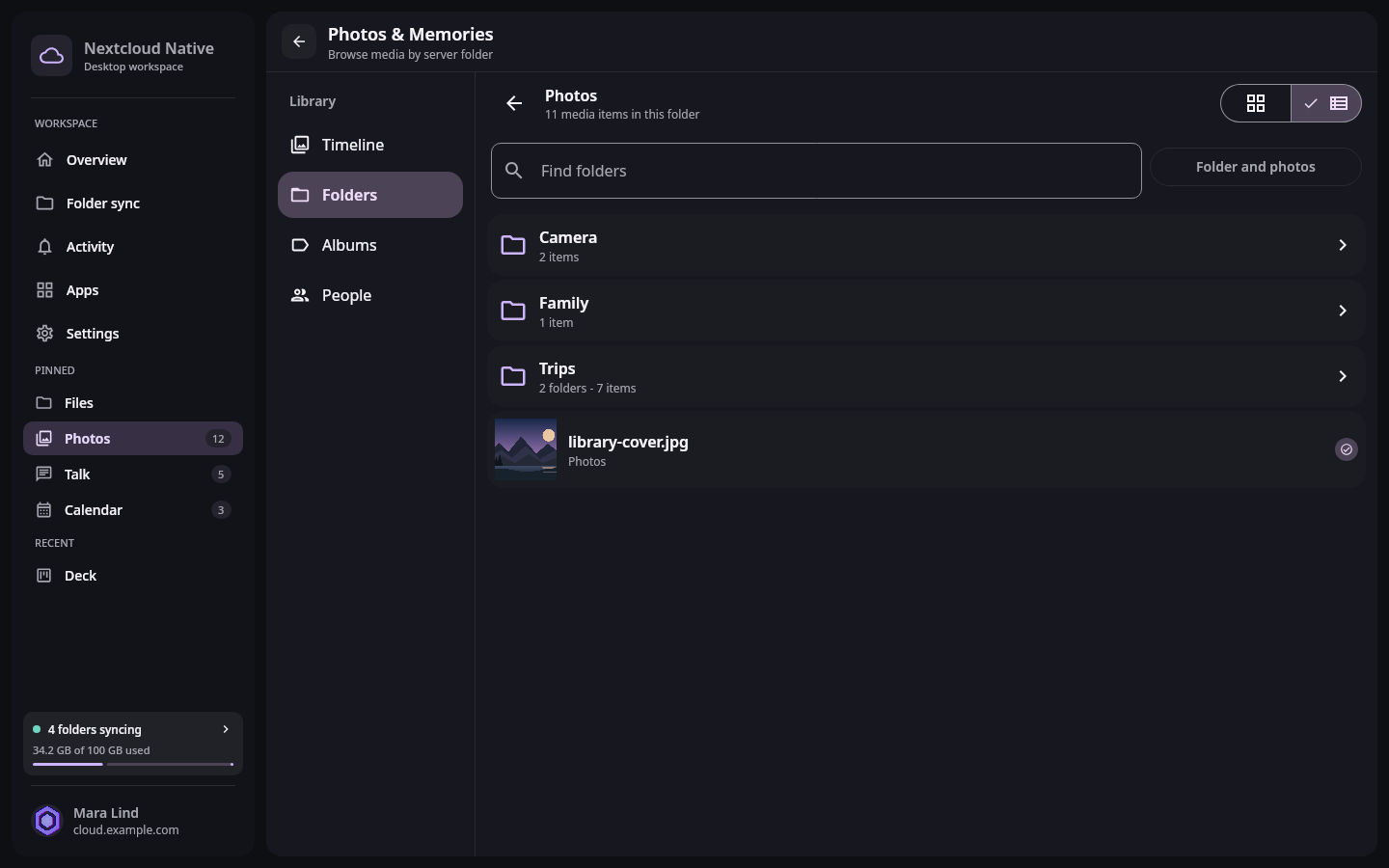
The Photos workspace lets you verify remote organization and backup state before removing eligible device copies. Real Compose UI Browse Photos and Memories and open the remote destination you selected. Confirm that recent photos and videos appear with the expected previews and folder organization. Nextcloud Native verifies the remote version before a local copy becomes eligible for cleanup.
Use a storage cleanup action only for media marked safely stored in Nextcloud. Originals involved in an active transfer, local edit, conflict, or failed verification remain protected. If a photo is important, keep a separate backup strategy as well; synchronization is not a replacement for independent backup history.