
Nextcloud Native brings your files, conversations, photos, calendar, and installed apps into one device-aware workspace. This guide helps you finish the first setup, recognize the important parts of the interface, and make the app comfortable before you start working.
Step 1 Connect your Nextcloud account
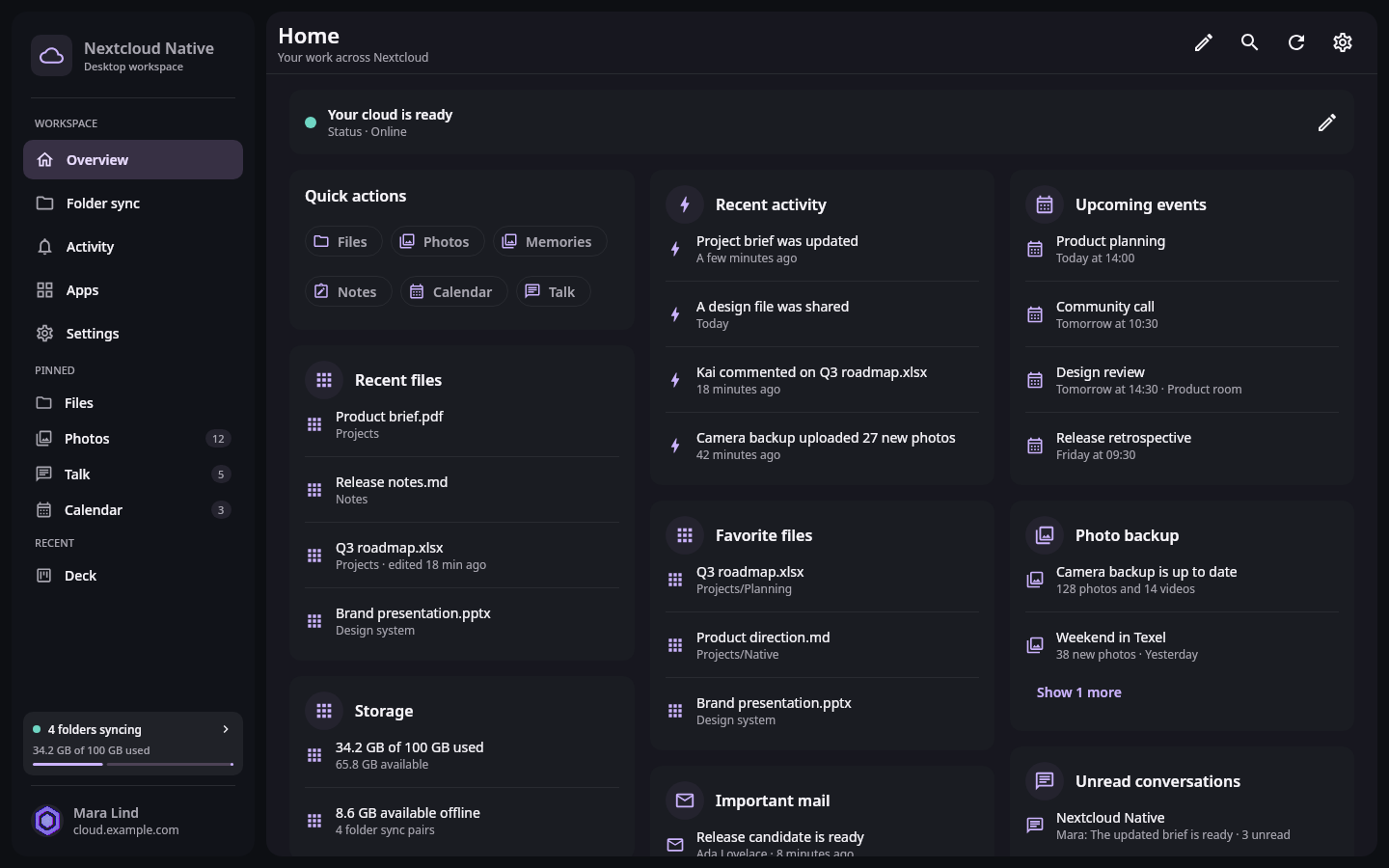
After sign-in, Overview confirms the connected account and brings active work from across Nextcloud into one useful starting point. Real Compose UI Next: Find the apps you useOpen Nextcloud Native and enter the full address of your server, including
https://. Continue in the trusted sign-in page and approve the generated app password. When you return, Overview should show your connection state and account activity. If the server address changes later, sign out before connecting the replacement account so cached content cannot be mixed between accounts.The colored status near the top tells you whether the app can currently reach Nextcloud. A temporary offline state does not remove downloaded or pinned files. It only means new server changes will wait until the connection returns.
Step 2 Find the apps you use
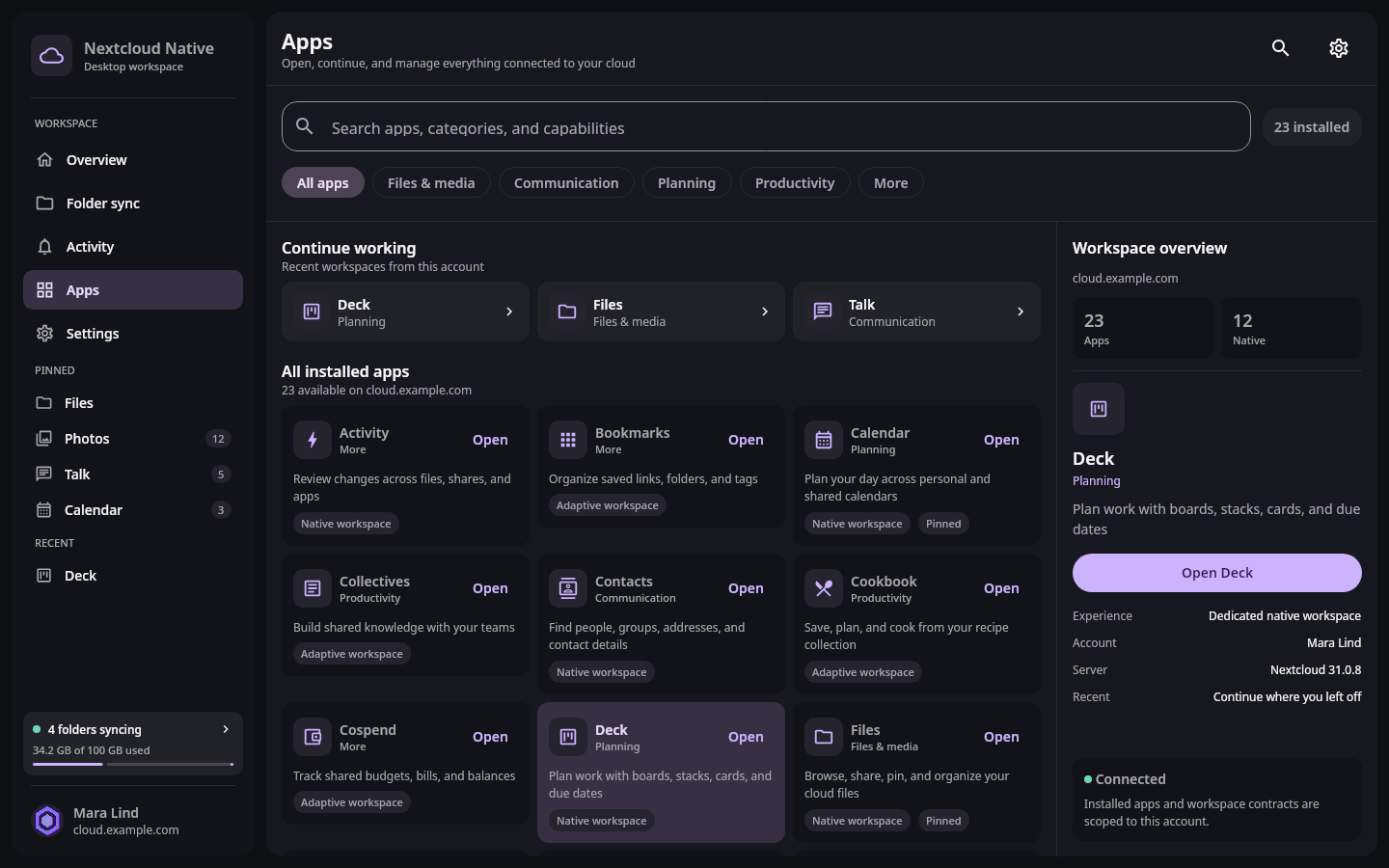
Apps is the complete catalog for the connected server, while pinned and recent entries keep everyday tools one click away. Real Compose UI Next: Check device behavior and appearanceChoose Apps in the workspace sidebar to see what this server provides. Search by name or use the categories to find Files, Photos, Talk, Calendar, Mail, Notes, Deck, and other installed tools. Open an app once to add it to your recent work. Frequently used apps stay pinned in the desktop sidebar so you can switch without returning to the catalog.
Nextcloud Native remembers the last place you visited inside each app. You can leave a project folder, conversation, calendar view, or board and return to the same state later. On a phone, use system Back to move within an app before returning to the main workspace.
Step 3 Check device behavior and appearance
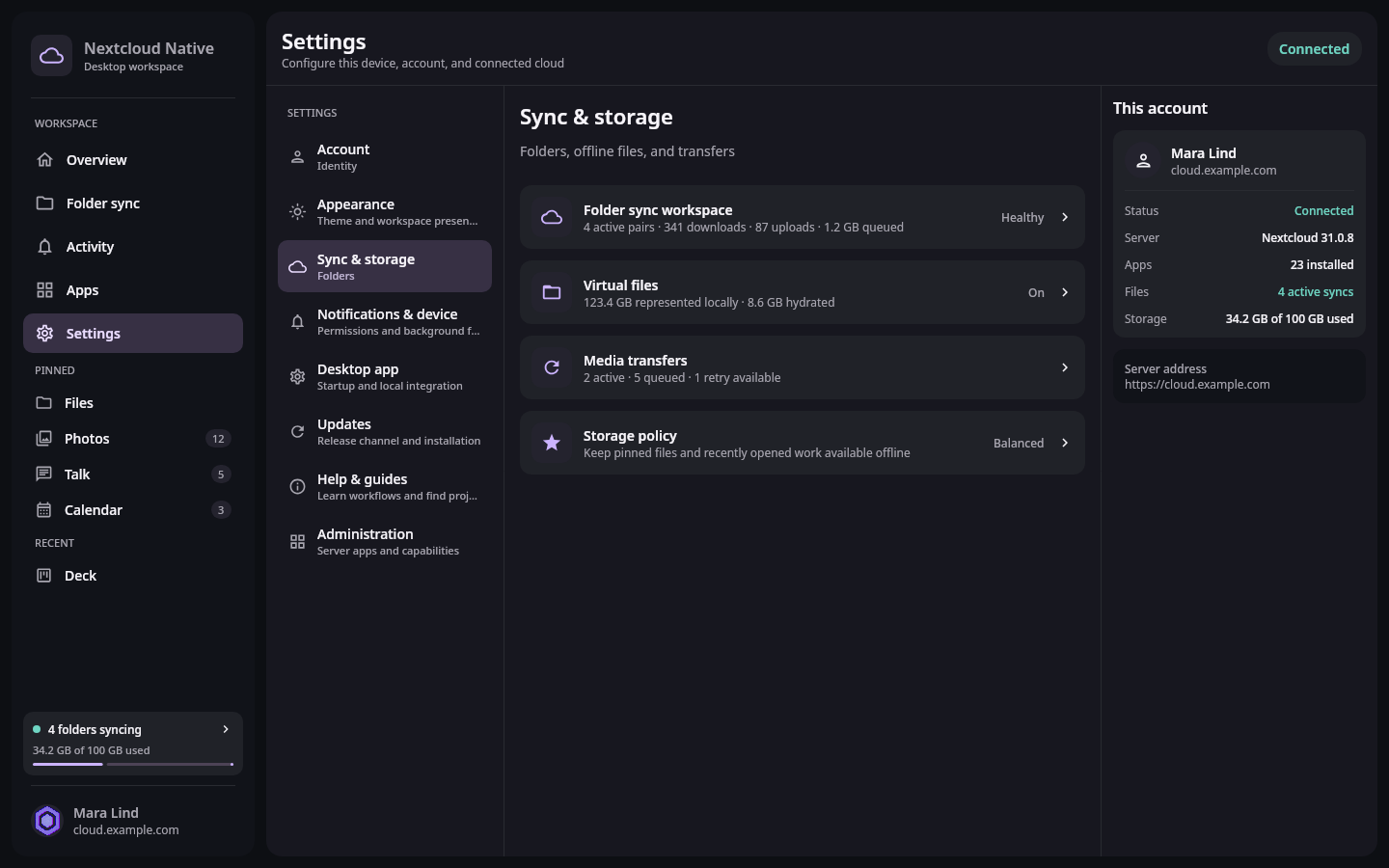
Settings groups account and device behavior by outcome, with platform-specific controls exposed only where they apply. Real Compose UI Open Settings and choose the theme that matches your device. Desktop users can decide whether Nextcloud Native starts when the computer signs in and can review virtual-file storage. Mobile users can review background transfer and media permissions from the matching system settings when requested.
Finish by opening Folder sync or Files and confirming that local storage behavior matches your needs. A file that is visible in the cloud is not automatically stored offline; explicitly pin important items or create a folder sync when you need a normal device folder that remains available without a connection.