
Nextcloud Native distinguishes files you can see from files that are actually stored on the device. Pinning the right projects gives you reliable offline access without turning the complete server into an unbounded local copy.
Step 1 Choose what needs to travel with you
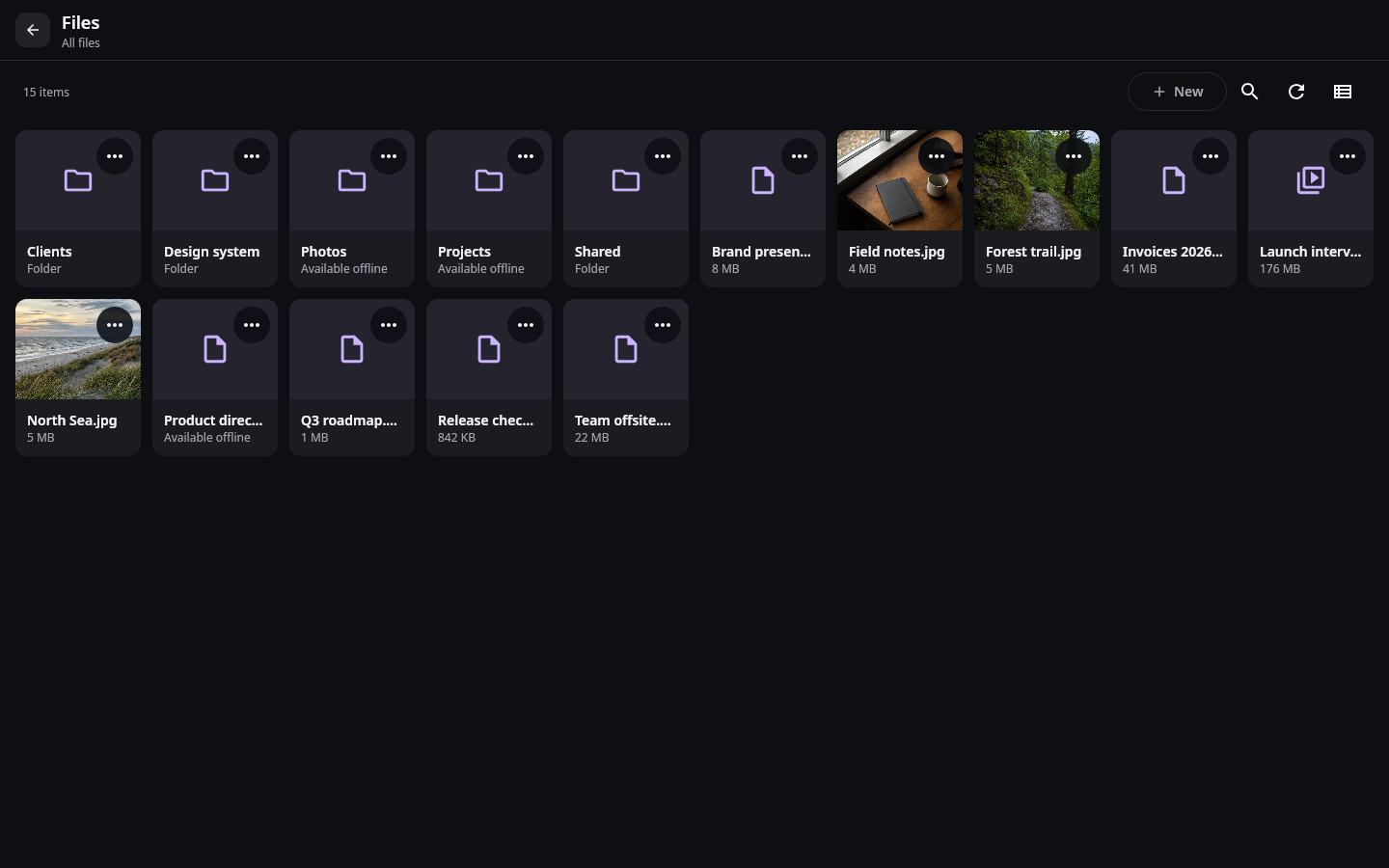
Files exposes availability and transfer state beside normal file actions so cloud visibility is not confused with offline storage. Real Compose UI Next: Review storage protectionOpen Files and browse to the project or folder you need. Use the item menu and choose Keep offline. Pin a folder when its contents should remain available together; pin individual files when storage is limited and only a few documents matter. Wait for the offline indicator to finish before disconnecting from the network.
Viewed, cached, pinned, uploaded, and synchronized are different states. A preview may be cached while the original remains cloud-only. A pinned item is protected from automatic cleanup, while an ordinary cached item can be reclaimed when the device needs space.
Step 2 Review storage protection
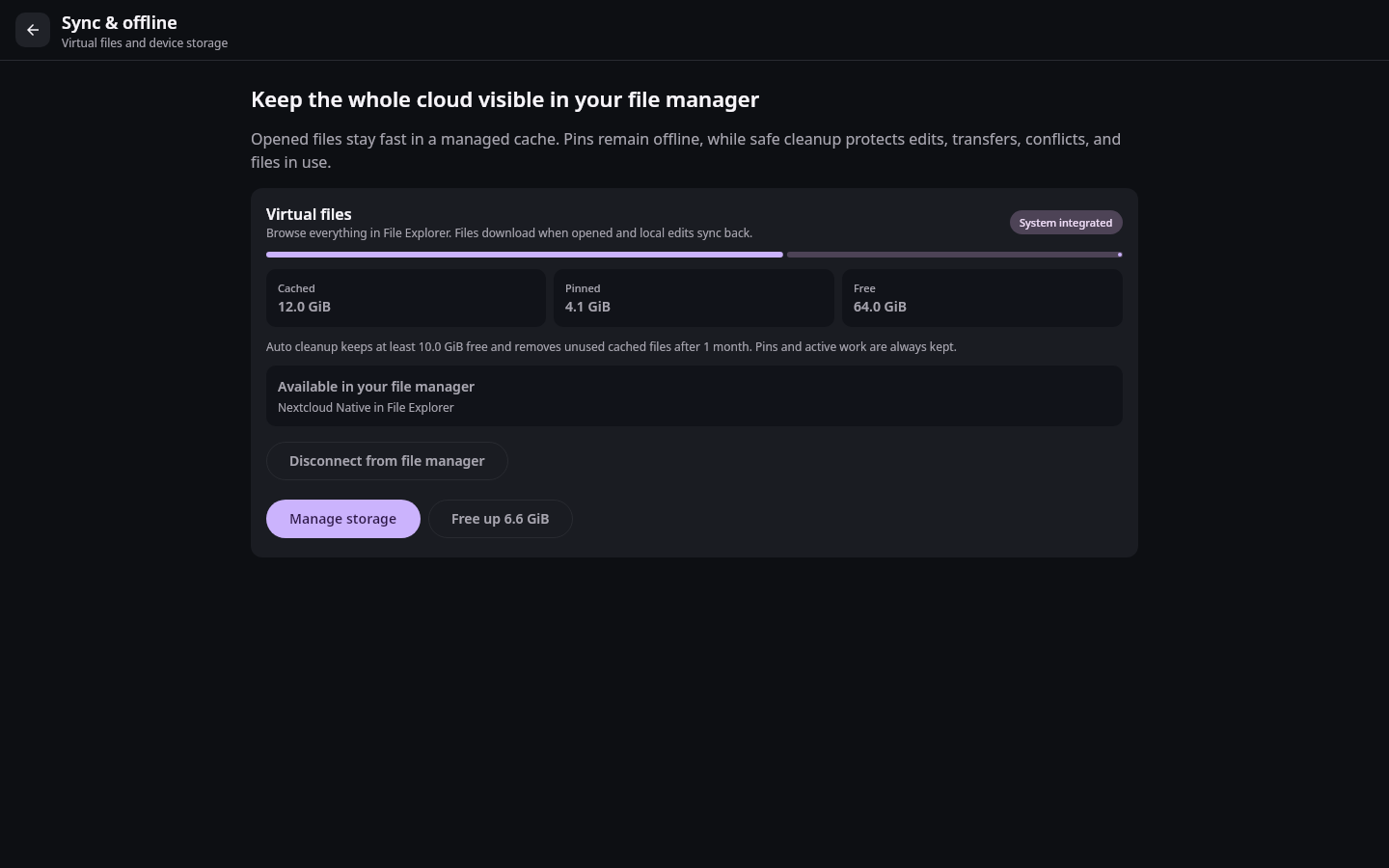
Storage management separates reclaimable cache from protected offline files, edits, conflicts, and transfers. Real Compose UI Next: Confirm transfers before going offlineOpen Settings, then Sync and offline to see how much storage is cached, reclaimable, or protected. Automatic cleanup removes eligible cached copies, not files from Nextcloud. Pinned files, local drafts, conflict copies, active transfers, and files currently in use are stronger retention classes and remain protected.
Choose Free up space only after reviewing the amount marked reclaimable. If you need to remove an offline pin, use the file's menu and choose the matching availability action. Removing a pin allows future cleanup; it does not delete the server file.
Step 3 Confirm transfers before going offline
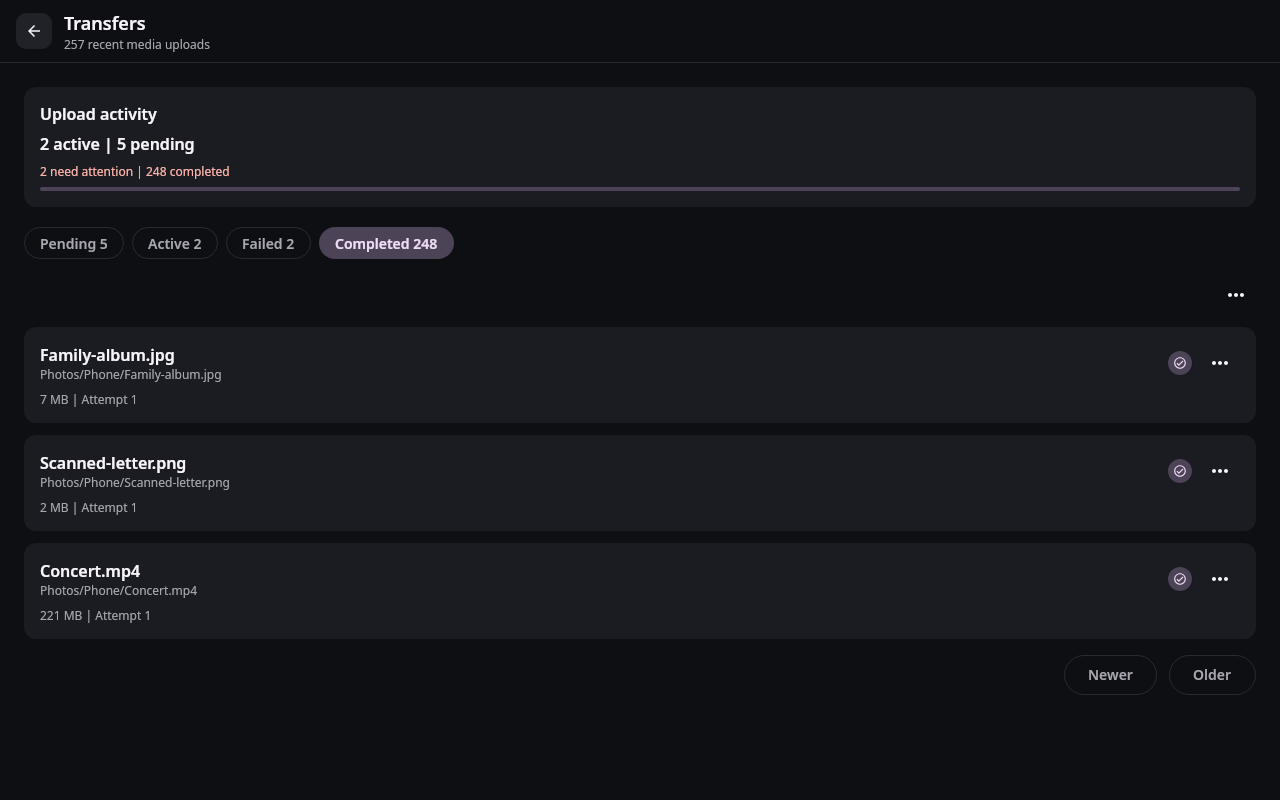
The transfer center keeps completed work and failures distinguishable so offline readiness can be checked before leaving a connection. Real Compose UI Open the transfer center from Settings or a transfer status action. Confirm that required downloads are complete and review any failed items. A failed transfer retains enough information for a safe retry; it does not mark a partial file as complete. Resolve quota, permission, or connection problems before retrying.
When you reconnect, Nextcloud Native refreshes pinned content and sends allowed local changes. If the same file changed on both sides, the app creates a visible conflict rather than silently replacing one version. Review the conflict when you are back online and can compare both copies.